
Getting Started with e‑flow for the Walmart H2R Project
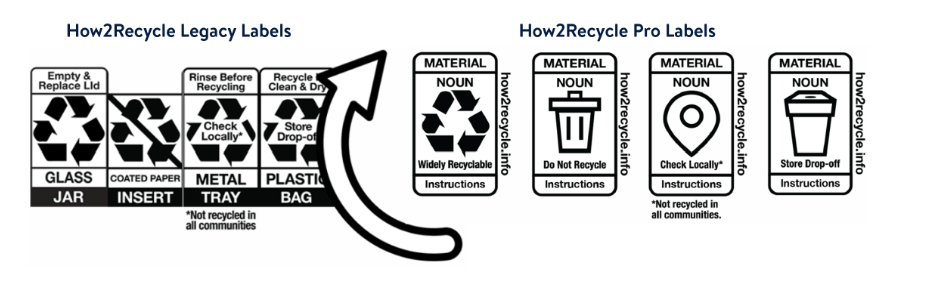
Due to emerging recyclability regulations, including California SB 343, there is need to update old How2Recycle Legacy labels to the newest How2Recycle Pro format.
To understand if your artwork is utilizing the old H2R Legacy Label or has already completed an update to the new H2R Pro label, please refer to the provided image below.
Please note that this workflow is designed to enable just a How2Recycle logo update. If your artwork does not have an H2R label already, this process does not apply to you.
 |
Below you’ll find guidance on how to complete key tasks in e‑flow to support the H2R project for Walmart.
If you require additional help at any point, please contact the Sun Branding Support Team at: support@sunbranding.com
Logging in to e‑flow
- Go to: https://www.e-flow.app/
- Enter your email address as your username.
-
If you do not know your password, select “I Don’t Know My Password” to reset it.
Adding Additional Users
If you are not the correct artwork reviewer—or if additional reviewers need access—please follow this guide:
🔗 How to Create Users in e-flow
Transferring Tasks to New Users
After you create a new user, you may need to transfer existing tasks to them. To do this, please refer to:
Approving Artwork in ProofScope (Online Approval Tool)
Once a task is assigned to the correct user:
- Open the task from the Task Page.
- Start an approval session.
- Review the artwork to ensure it is the correct and current version.
- If it is not the current version, add an annotation explaining why. You do not need to add an annotation where the version you are seeing is correct
- When finished, click Complete (top-right corner) and select Approved (Green Tick). Where the artwork is not the correct version, please select Not Approved (Red Cross).
For a step‑by‑step guide:
🔗 Reviewing Assets in the Online Approval Tool
ProofScope – Additional Guidance
For a more detailed overview of using ProofScope:
Uploading the H2R Asset
Once you have your H2R logo, upload the asset from your desktop into e‑flow. Instructions can be found here:
🔗 How to Upload an Asset via a Task
Please ensure you upload .ai (illustrator) versions of the How2Recycle logo/s only.
After the H2R swap-out is completed, a new task will be sent to you for approval.
Please follow the standard approval instructions noted above.
Once you approve the file containing the H2R update, your final files will be sent to you via email.
Comments
Article is closed for comments.