
What's New?
Nebula Sidebar
The new customisable sidebar that lets you discover the latest features.
Palettes
The Palettes largely correspond with the Classic sidebar's view modes. They offer the same functions as the Classic sidebar. They differ in that they are optional, selectable, dockable, movable and collapsible.
If not already displayed, the Palettes need to be selected from a dock panel. This Palettes dock panel displays all available palettes with their description.
Palettes are sorted alphabetically. The alphabetical order can be modified and will be maintained as long as the dock remains open. Resorting can be done by reopening the dock, or clicking the sort button.
The dock panel features a search function to rapidly find an appropriate palette. The search function looks inside both palette names and descriptions and highlights matches with part of the search string as it is typed.
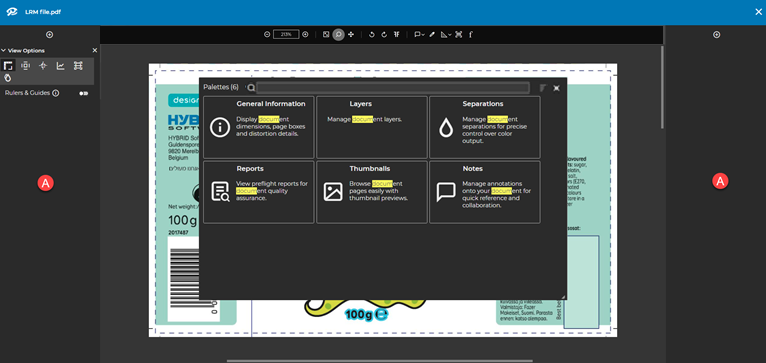
The following palettes are available:
- General Information
- Thumbnails
- Separations
- Layers
- View Options
- Notes
- Find
- Font Properties
- Braille Detection
Display Palettes
To display palettes, proceed as follows:
-
Click a plus icon
 .
.The Palettes window is displayed.
- Select the required Palette and drag it to the required position, either the left or right sidebar (A).
The palette will dock to the top of the sidebar, or the bottom of an already placed palette, as the case may be. - Repeat this step for each required palette
- If necessary, select a palette and drag it over another palette to move it to a new position.
- When finished, close the Palettes window.
Control Palette visibility
- To limit a palette’s view, click its collapse icon
 .
.
The palette is folded but still present in the sidebar. - To display a palette, click its expand icon
 .
.
The palette is unfolded. - To remove a palette, click its
 icon.
icon.
The palette is removed from the sidebar and returned to the Palettes dock panel.
Compare Updates
In Compare view, both PDF files A and B can now be panned and zoomed independently for easier side‑by‑side review.
To enable this feature, initiate a compare session in the approval tool, when loaded there is a new control panel called 'Differences'.
To enable independent Zoom, unselect 'Synchronize Views',
The view will automatically display as a split screen, and you will be able to use the zoom/pan features independently in each asset:
In addition, you can switch to a vertical layout and switch the A&B files using this control.
Comments enhancements
When using the Barcode, Distance, Font, or Braille tools, any data retrieved by the selected tool can be automatically placed into a note, where it can be reviewed and edited as needed.
Measuring Angles
When using the measure tool there are additional details included which show the angle of the selection as shown below:
Bug Fix
Fixed: With files created in Illustrator 30.2/30.3 and saved either as Ai with "Create PDF Compatible File” or as PDF with "Preserve Illustrator Editing Capabilities”, a bug in Illustrator created duplicate gradient definitions. This caused files to crash when opened. Additional validation now resets any duplicate gradient definitions.
Comments
Article is closed for comments.